How to Know if Someone Read Your Email in Gmail
Last updated: February 27, 2026
Short Answer: Personal Gmail accounts do not provide built-in read confirmations. Google Workspace may allow limited read receipt requests depending on administrator settings, but confirmations are not guaranteed. To confirm whether an email was opened in a personal Gmail account, you must use an external tracking method that detects when a unique image inside the message is loaded.
Quick Summary:
- Personal Gmail does not provide built-in read confirmations.
- Google Workspace read receipts are limited and not guaranteed.
- Tracking images can confirm when an email is opened.
- Open confirmation depends on image loading behavior.
You cannot see read confirmations in personal Gmail accounts. Gmail does not provide built-in read receipts for standard @gmail.com users. If you want to know whether someone opened your email, you need to use an external tracking method.
Why Gmail Doesn’t Show Read Status
Definition: A read confirmation is a notification that informs the sender that an email has been opened or displayed by the recipient.
Unlike messaging apps, Gmail does not display “seen” indicators for personal accounts. Google limits read receipt functionality primarily to certain Google Workspace environments (see how to turn on read receipts in Gmail), and even there it is not guaranteed.
This means that when you send an email from a regular Gmail account, there is no native way to confirm whether the recipient opened it.
Common Ways People Try to Check
- Watching for a reply.
- Checking if links were clicked.
- Using Google Workspace read receipts.
- Installing an email tracking extension.
Most users discover that Gmail itself does not provide direct confirmation.
Other Methods People Consider
- Requesting confirmation in a follow-up email.
- Using Google Workspace read receipts (if available).
- Monitoring link click activity.
- Installing third-party email tracking extensions.
Each method has limitations. Personal Gmail accounts do not provide built-in read confirmation indicators.
How Email Open Tracking Works in Gmail
Gmail automatically loads images when an email is opened (unless disabled by the recipient). Email tracking tools use a unique image link inserted into the message.
When the email is opened and images load, the tracking system records that activity.
Technical Considerations
Gmail uses proxy servers to retrieve and cache images. This can influence how tracking signals appear. Some systems focus on identifying the first confirmed open event rather than counting repeated image loads.
Step-by-Step: How to Confirm an Email Open in Gmail
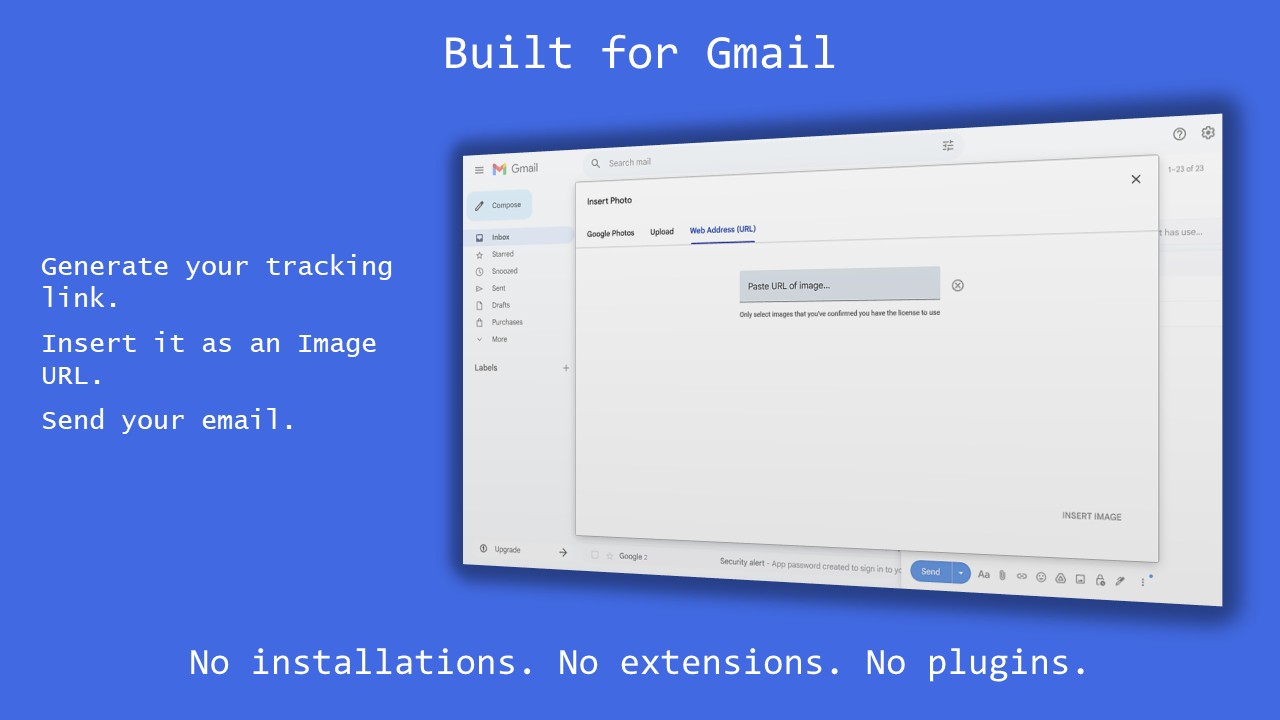
- Create a unique tracking image link.
- Compose your Gmail message.
- Select Insert → Image → Web Address (URL).
- Paste the tracking image link.
- Send your email.
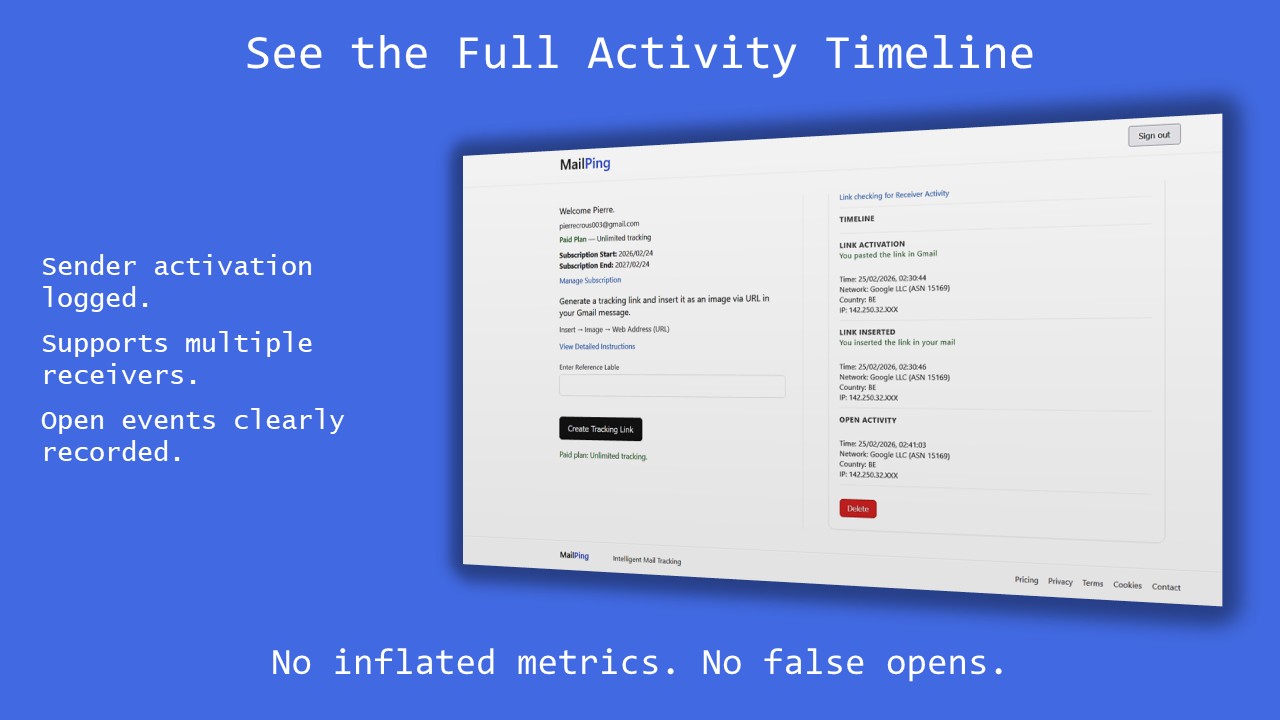
- Check your dashboard for the first confirmed open timestamp.
How MailPing Confirms Email Opens
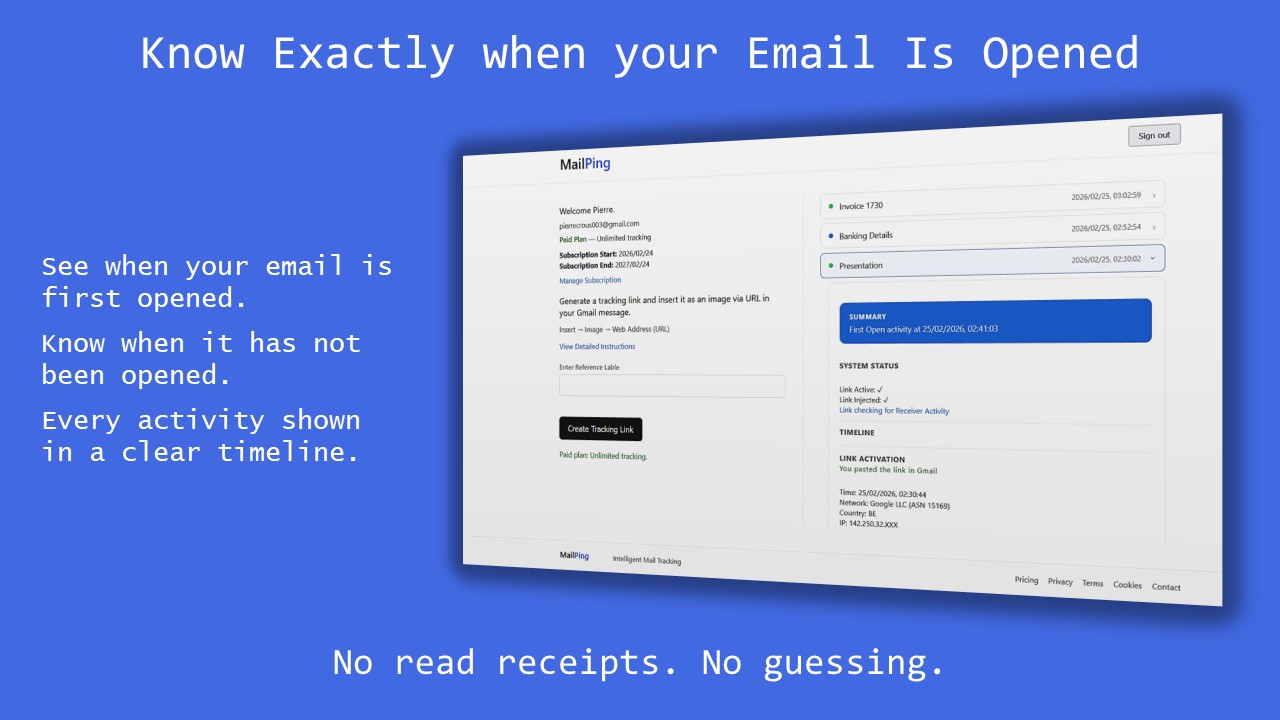
MailPing generates a unique tracking image that you insert into your Gmail email using:
Insert → Image → Web Address (URL)
When the email is opened and images load, MailPing records the first confirmed open activity and displays the timestamp inside your dashboard.
MailPing focuses on clarity. It records the first confirmed open event and does not inflate repeated signals.
Looking specifically for a Gmail read receipt alternative? Compare Gmail’s built-in limitations with tracking-based confirmation.
Frequently Asked Questions
Can I see if someone opened my Gmail without tracking tools?
No. Personal Gmail accounts do not provide read confirmations.
Does Gmail notify me when someone reads my email?
No. Standard Gmail accounts do not send read notifications.
Is email open tracking accurate?
Email tracking detects when images are loaded. While technical factors can influence results, well-designed tracking systems focus on the first confirmed open event rather than counting repeated activity.
See MailPing in Action