How to Turn On Read Receipts in Gmail
Last updated: February 27, 2026
Short Answer: You cannot turn on read receipts in a personal Gmail account. Read receipts are only available in certain Google Workspace accounts, and even then they must be enabled by an administrator. Recipients may also decline to send a receipt.
Quick Summary:
- Personal Gmail accounts cannot enable read receipts.
- Google Workspace may allow receipt requests.
- Workspace receipts depend on admin settings.
- Tracking images are an alternative for personal accounts.
You cannot turn on read receipts in a personal Gmail account. Read receipts are only available for certain Google Workspace accounts, and even then, they must be enabled by the organization’s administrator. If you are wondering whether Gmail has read receipts, the answer depends on your account type.
Definition: A read receipt is a notification sent to the sender confirming that an email has been opened or displayed by the recipient.
Read Receipts in Personal Gmail
If you are using a standard @gmail.com account, Gmail does not provide a built-in option to request or receive read receipts. See how to know if someone read your email in Gmail for alternative options.
There is no setting inside Gmail that allows personal users to activate read confirmations.
Read Receipts in Google Workspace
Step-by-Step (Google Workspace Only)
- Confirm your account is a Google Workspace account.
- Ensure your administrator has enabled read receipts.
- Compose a new email in Gmail (desktop).
- Click the three-dot menu in the compose window.
- Select “Request read receipt” (if available).
- Send your message.
Google Workspace (business or school accounts) may allow users to request read receipts, but availability depends on administrator settings.
If enabled, the option appears when composing an email in Gmail on desktop. However:
- Recipients can decline to send a receipt.
- Receipts are not guaranteed.
- The feature may not work in all email clients.
- Administrators can restrict usage.
Because of these limitations, read receipts in Workspace environments are not always reliable confirmation of message views.
Technical Limitations
Even when enabled, Gmail read receipts are not guaranteed. Recipients may decline to send a receipt, and some email clients may not trigger the prompt. Mobile apps may also behave differently from desktop Gmail.
Other Ways People Attempt Confirmation
- Sending a follow-up email requesting acknowledgment.
- Upgrading to Google Workspace (if appropriate).
- Monitoring link click activity inside emails.
- Using email tracking tools that rely on image loading behavior.
Personal Gmail accounts do not provide a built-in setting to activate automatic read confirmations.
What If You Use a Personal Gmail Account?
If you use a personal Gmail account and need confirmation that an email was opened, your options are limited to:
- Following up manually.
- Using a tracking image link inserted into your email.
How MailPing Provides Open Confirmation
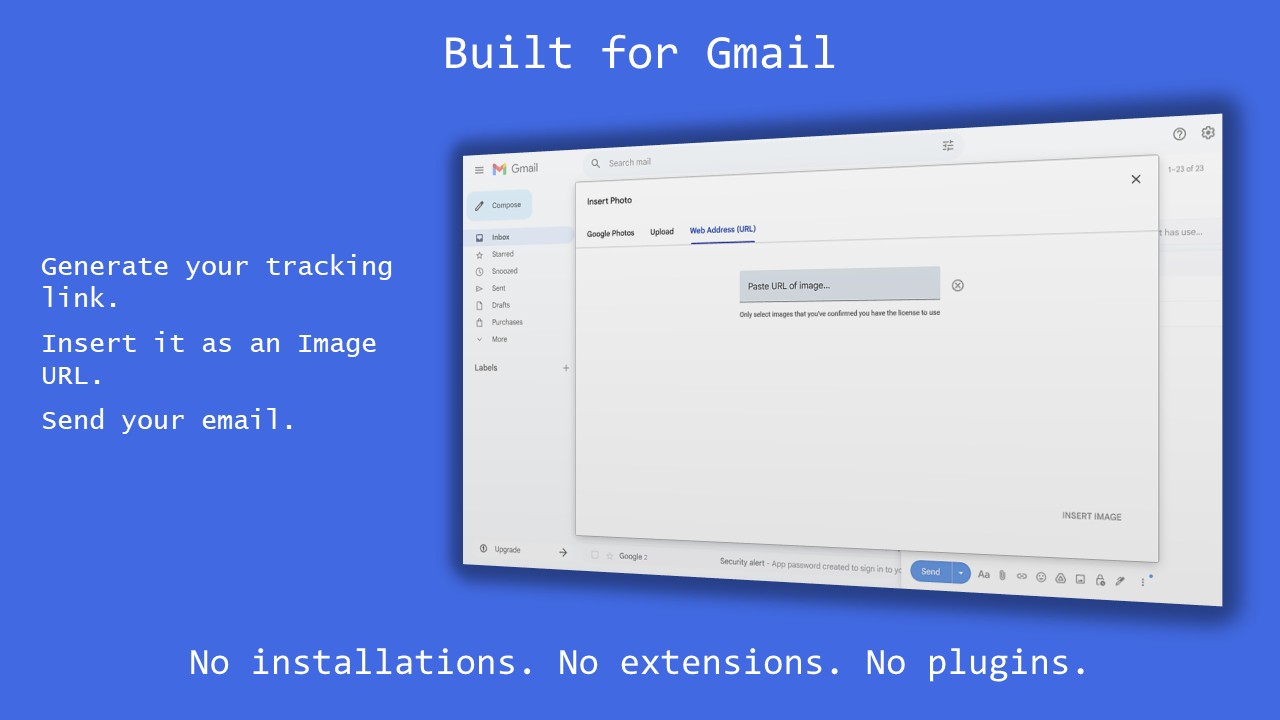
MailPing generates a unique tracking image that you insert into your Gmail message using (learn more about tracking emails in Gmail):
Insert → Image → Web Address (URL)
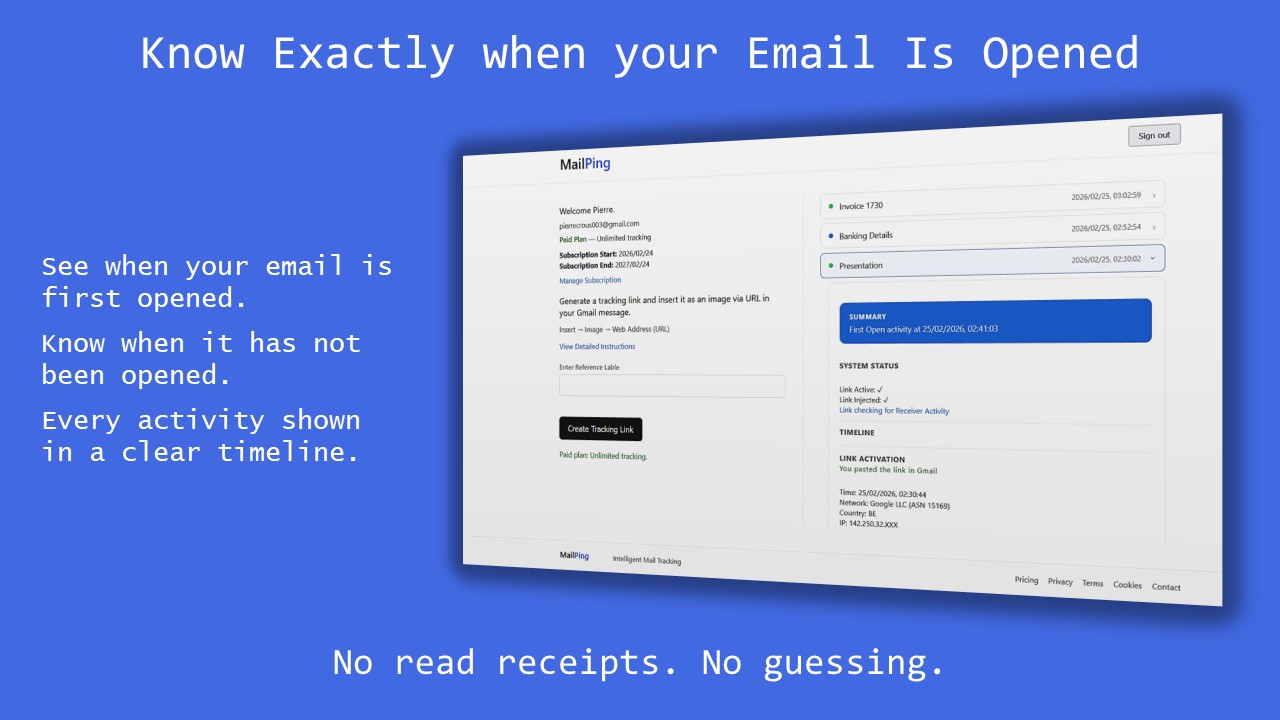
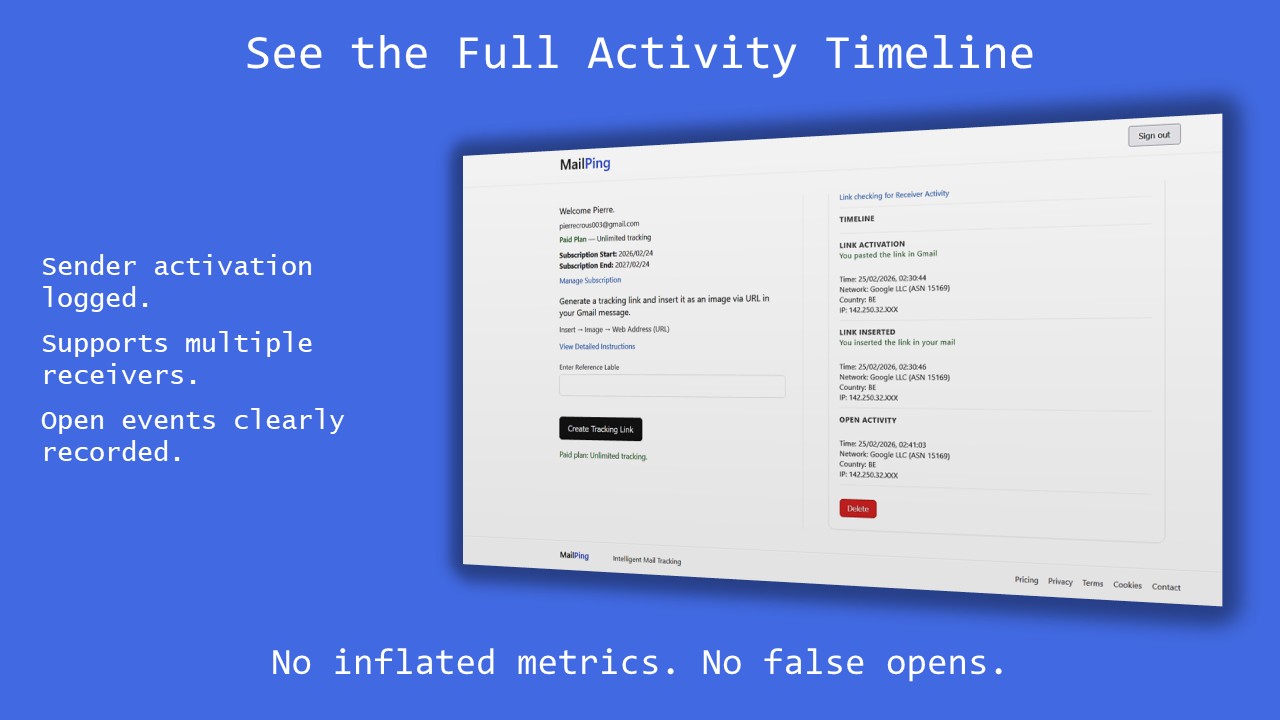
When the recipient opens the email and images load, MailPing records the first confirmed open activity and displays the timestamp in your dashboard.
MailPing does not attempt to identify individuals and does not inflate repeated opens. It focuses on showing the first confirmed open event clearly.
Looking for a Gmail read receipt alternative? Compare Gmail’s Workspace limitations with tracking-based confirmation.
Frequently Asked Questions
Why don’t I see the read receipt option in Gmail?
If you use a personal Gmail account, the feature is not available. If you use Google Workspace, your administrator may have disabled it.
Are Gmail read receipts automatic?
No. In Workspace accounts, recipients can be prompted to approve sending a receipt, and it may not be sent automatically.
Do Gmail read receipts work on mobile?
Read receipt behavior can vary by device and email client. In some cases, recipients may not be prompted, and confirmations may not be sent.
See MailPing in Action