How to Track Email in Outlook
Last updated:
Short Answer: Outlook includes read receipt requests, but they are not reliable. Recipients can decline them, and confirmations are not guaranteed. If your goal is to reliably confirm email opens — especially from a professional domain — using Gmail alias infrastructure with a tracking image provides a more consistent solution.
Quick Summary:
- Outlook read receipts require recipient approval.
- Confirmations are not guaranteed.
- Desktop, web, and mobile behave differently.
- Using Gmail alias + tracking image is more consistent.
Does Outlook Have Read Receipts?
Yes — but with limitations. Outlook allows you to request a read receipt when sending an email. However:
- Recipients can decline the request.
- Corporate policies may block receipts.
- Some email clients ignore receipt requests entirely.
- Mobile versions may behave differently from desktop.
That means a read receipt request does not equal confirmed delivery or confirmed open.
Why Outlook Tracking Often Fails
Outlook tracking depends on recipient cooperation. If the recipient declines the receipt, you receive nothing. If their email client does not support it, you receive nothing.
This is why many users searching for “track email in Outlook” are actually trying to solve a different problem: You want to know whether your professional email was opened.
The Real Goal: Tracking Email from Your Own Domain
If you're sending from [email protected], you likely care about confirmation for business communication. The limitation is not your domain address — it is the sending environment.
Outlook desktop, Outlook web, and mobile apps all handle rendering and confirmation differently. This fragmentation makes reliable open confirmation difficult when relying on read receipts alone.
Instead of depending on Outlook’s built-in receipt request, you can:
- Add your domain email as a Gmail alias.
- Send from Gmail while keeping your professional address.
- Insert a tracking image into your message.
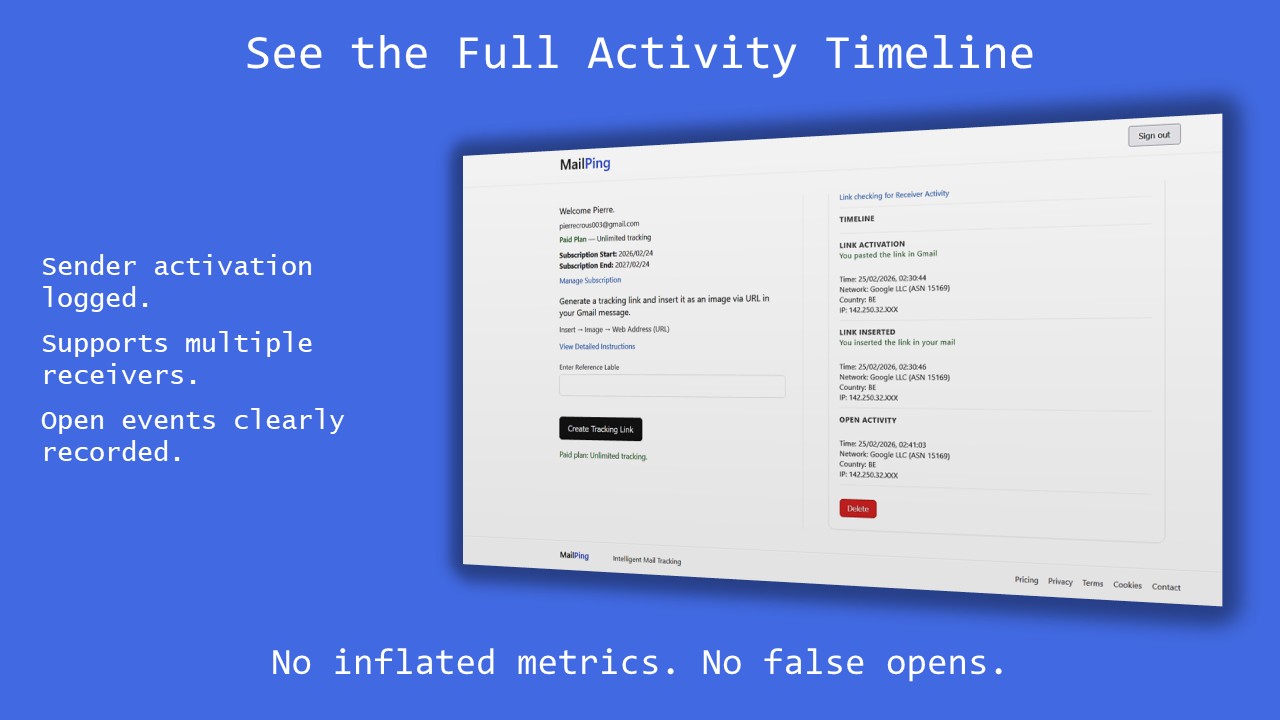
- Confirm the first open event inside your dashboard.
Using Gmail as the sending environment provides more consistent web-based rendering and reduces dependency on recipient approval.
Learn how to set this up in the complete guide: How to Send Email from Your Domain Using Gmail Alias.
Outlook vs Gmail Alias Tracking
| Feature |
Outlook Read Receipt
Recipient Approval Based
|
Gmail Alias + Tracking
Rendering Based Confirmation
|
|---|---|---|
| Recipient Approval Required | Yes | No |
| Works for Personal Domains | Limited | Yes |
| Cross-Device Consistency | Variable | More Consistent |
| Guaranteed Confirmation | No | Image Load Based |
How MailPing Confirms Opens
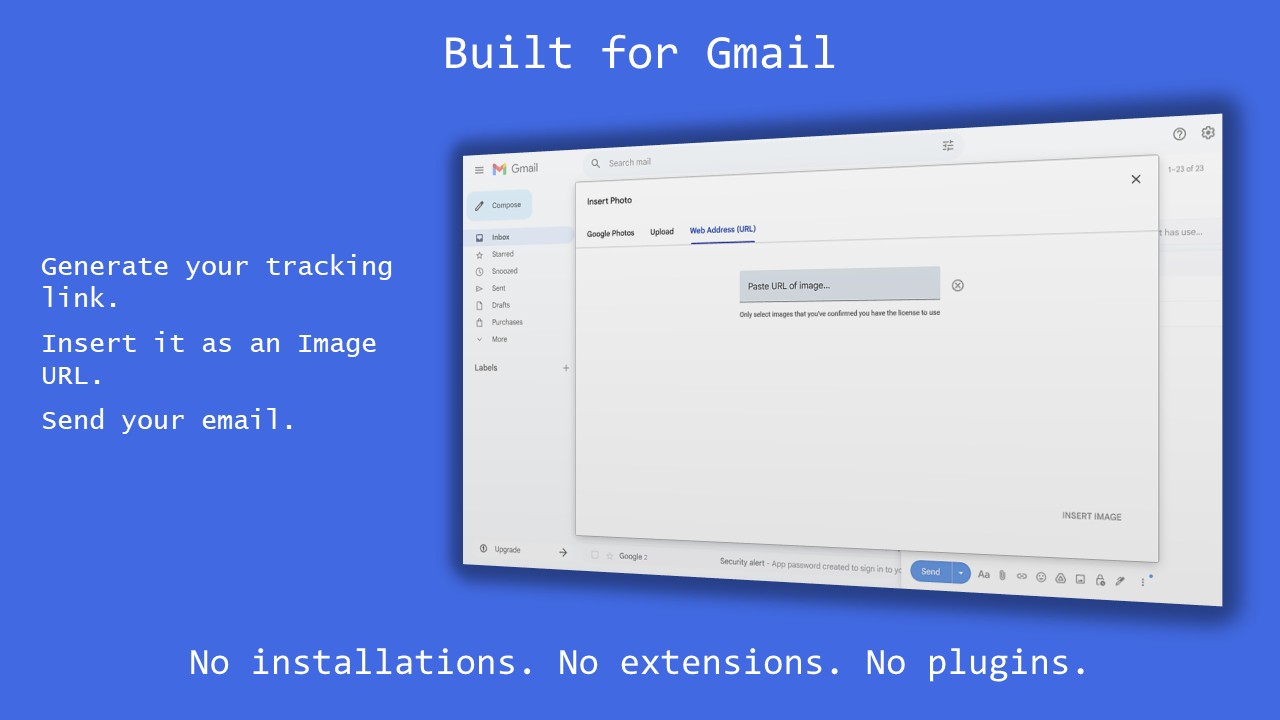
MailPing generates a unique image link that you insert using:
Insert → Image → Web Address (URL)
Unlike read receipts, this method confirms open activity based on email rendering rather than recipient interaction.
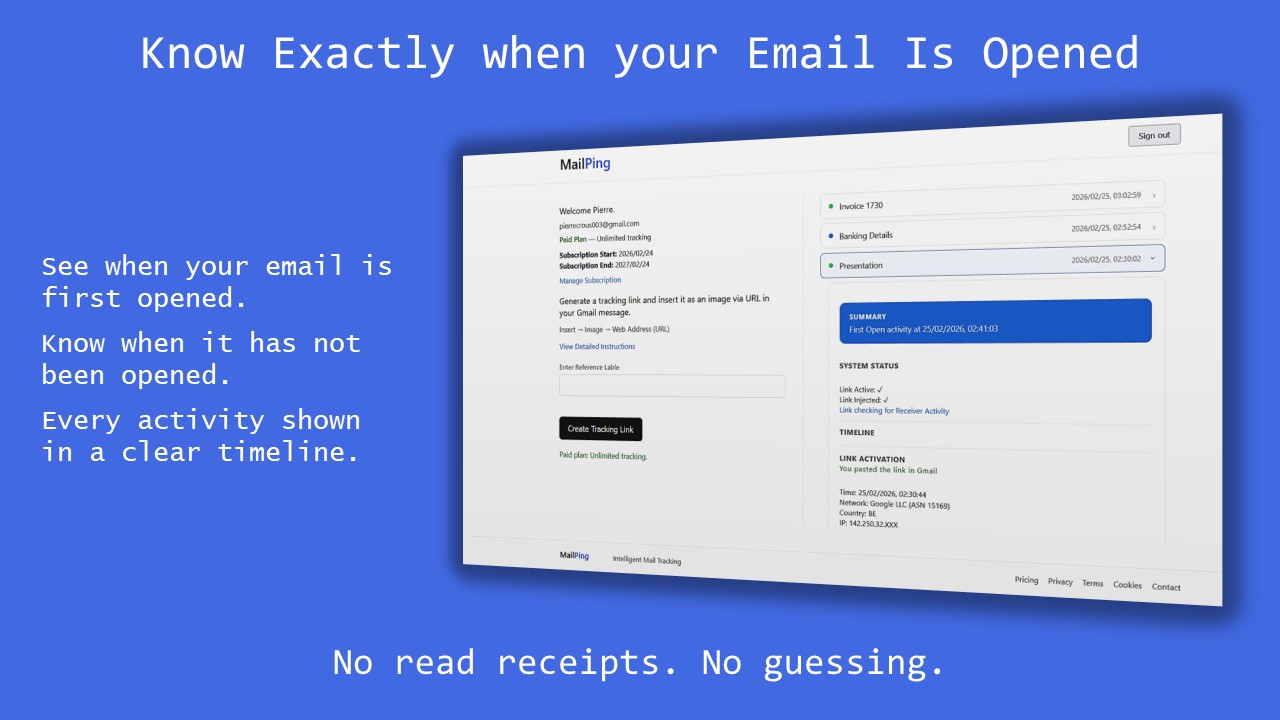
When the recipient opens the email and images load, the first confirmed open event is recorded and timestamped in your dashboard.
Track the first real open — no fake signals, no inflated metrics.
Start Tracking FreeFrequently Asked Questions
Can I track email opens in Outlook without third-party tools?
No reliable method exists beyond receipt requests, which recipients can decline.
Are Outlook read receipts reliable?
No. They depend on recipient approval and client support.
What is the most reliable way to track emails sent from my domain?
Using a Gmail alias and embedding a tracking image provides more consistent open confirmation.
See MailPing in Action