How to Send Email from Your Domain Using Gmail Alias
Last updated:
Short Answer: You can send email from your own domain inside Gmail using the “Send mail as” feature. When combined with a tracking image, this provides a more consistent method for confirming email opens compared to many standalone mail clients.
- Gmail supports domain alias sending.
- Your recipient still sees your domain address.
- Works with most hosting providers.
- Allows consistent open confirmation using tracking images.
Why Use Gmail Alias Instead of Sending Directly from Outlook or Webmail?
Many standalone mail clients rely on read receipt requests. These depend on recipient approval and are not guaranteed.
The problem is not your domain address. The problem is the sending environment.
Desktop clients, hosted webmail, and third-party apps all handle rendering, caching, and image loading differently. This creates inconsistency when confirming whether an email was opened.
Why Gmail Infrastructure Improves Tracking Reliability
When you send through Gmail using an alias, you benefit from a unified web-based sending environment instead of fragmented desktop software.
- Consistent web rendering instead of device-dependent behavior.
- Unified image handling across desktop browsers.
- Reduced variability from local mail client settings.
- Stable compose interface for inserting tracking images.
- Less dependence on recipient confirmation prompts.
Instead of relying on a recipient clicking “Send Receipt,” open confirmation is based on whether the email content is rendered and images are loaded.
This shift—from receipt request to infrastructure-based confirmation—is what makes Gmail alias sending more consistent for business communication.
If you're unfamiliar with how image-based confirmation works inside Gmail itself, review how to track emails in Gmail step-by-step for a practical walkthrough.
The "Invisible Handshake": Why Gmail Protects Your Sender Reputation
Most users switch to a Gmail alias for the interface, but the real advantage is the "Invisible Handshake."
When you send emails through standard hosting webmail, you often share an IP address with thousands of other users—some of whom may be sending spam. This "noisy neighborhood" can lead to your professional emails being throttled or sent to the junk folder before they are even read.
By routing your domain through Gmail’s infrastructure, you leverage Google’s superior header management and retry logic. Unlike basic webmail, Gmail "cleans" your message metadata to strictly adhere to modern SPF and DKIM standards. This essentially validates your professional domain through the world's most trusted email environment, leading to higher inbox placement and more accurate open data.
Step-by-Step: Configure Gmail Send Mail As
- Log into Gmail.
- Click the gear icon → See all settings.
- Open Accounts and Import.
- Under “Send mail as,” click Add another email address.
- Enter your domain email address.
- Enter your SMTP server details (from your hosting provider).
- Verify via confirmation email.
- Select your alias when composing new messages.
Need Help Finding Your SMTP Details?
If you’re unsure about your SMTP server name, port, or authentication settings, you don’t have to figure it out manually.
Open your preferred AI assistant and ask it how to configure Gmail “Send mail as” using your specific hosting provider. Include:
- Your hosting company name
- That you want to use Gmail “Send mail as”
- That you are configuring a custom domain email
Most hosting providers have slightly different SMTP settings. An AI assistant can generate step-by-step instructions tailored to your provider in seconds.
This makes setup faster and removes the guesswork.
How to Confirm Email Opens
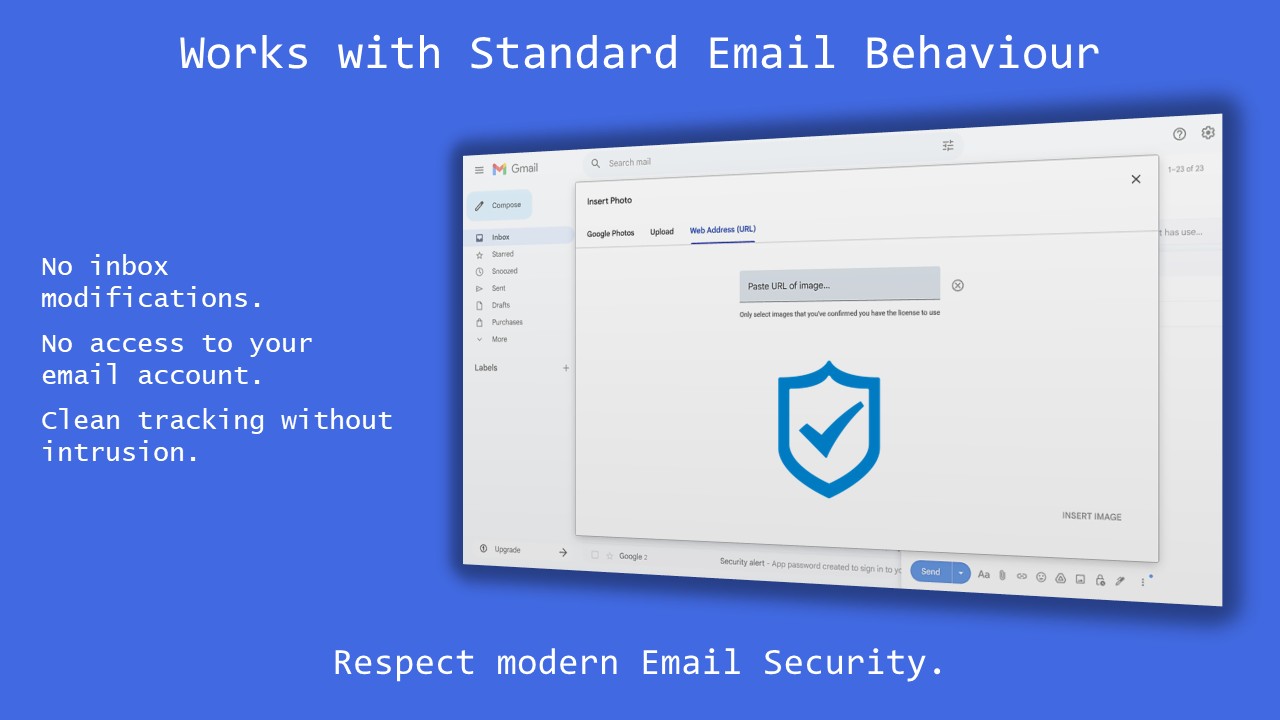
Once your alias is configured, confirmation does not depend on read receipts.
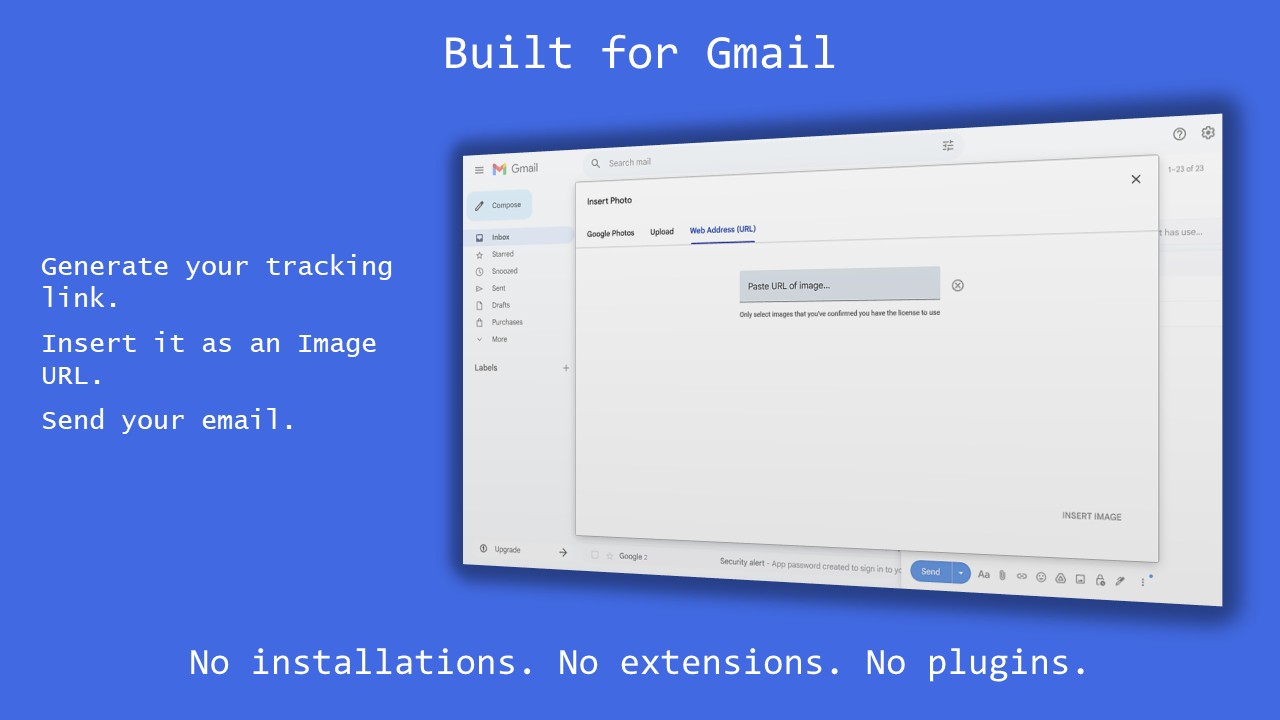
Before sending, insert a tracking image using:
Insert → Image → Web Address (URL)
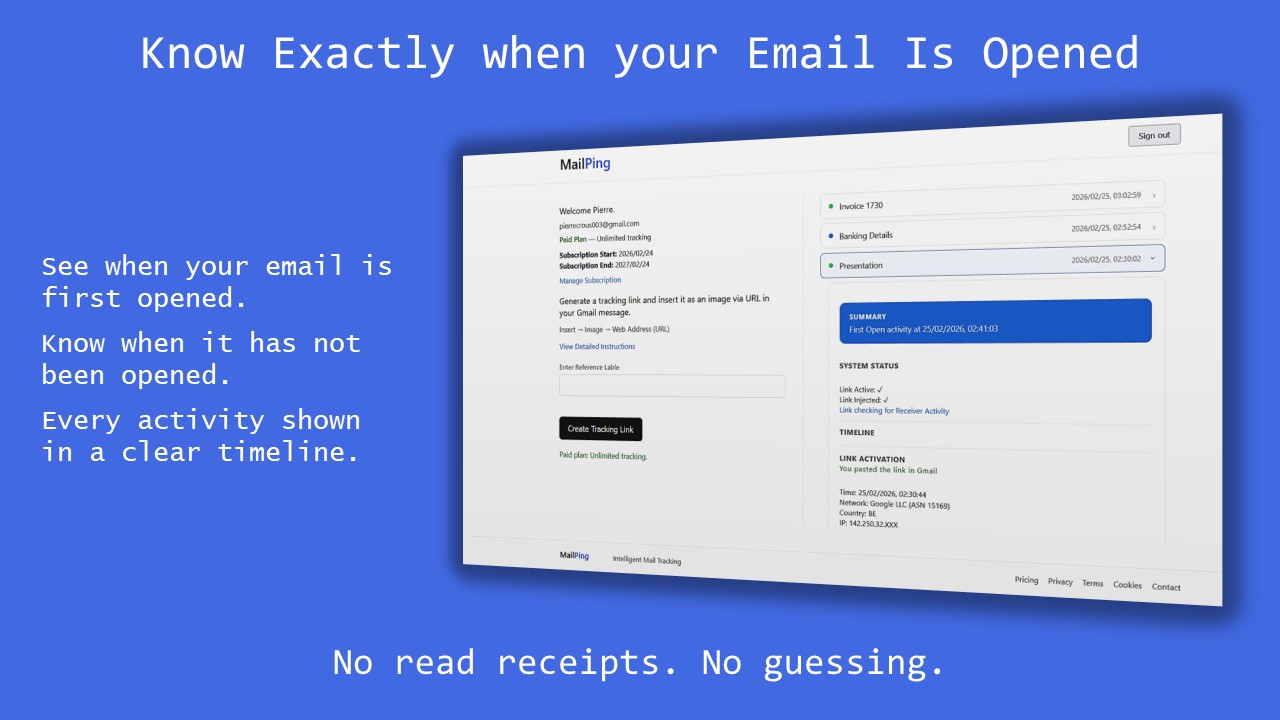
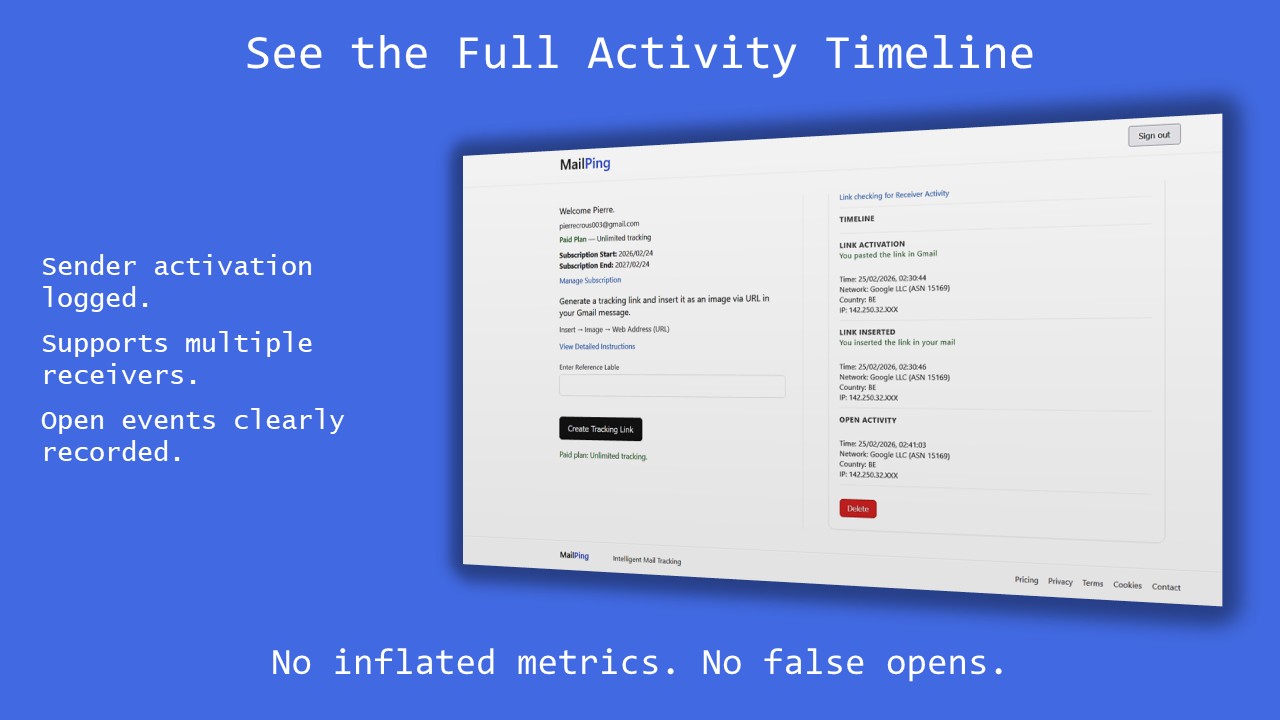
When the recipient opens the message and images load, the first confirmed open event is recorded in your dashboard.
This method confirms rendering behavior rather than recipient approval, which makes it fundamentally more reliable than traditional receipt requests.
For a direct comparison between receipt-based confirmation and rendering-based confirmation, see Gmail vs Outlook read receipts.
Track the first real open — no fake signals, no inflated metrics.
Start Tracking FreeRelated Email Tracking Guides
If you arrived here from a specific mail client, you may also want to review:
- How to Track Email in Outlook
- How to Track Email in Apple Mail
- How to Track Email in Yahoo Mail
- How to Track Email from Your Own Domain
Each guide explains why built-in read receipts are limited and how Gmail alias infrastructure provides a more consistent alternative.
Understanding Tracking Accuracy
Tracking accuracy depends on how email clients handle image loading and caching. Gmail uses proxy servers that may influence how open events appear.
For a deeper technical explanation, review Gmail tracking accuracy explained and how Gmail image proxy affects tracking.
Frequently Asked Questions
Can I send from my domain inside Gmail?
Yes. Configure SMTP settings and verify your address.
Will recipients see Gmail instead of my domain?
No. When configured correctly, recipients see your domain address.
Is this better than Outlook read receipts?
Yes. Read receipts require recipient approval and are often declined or ignored. Gmail alias tracking confirms open activity based on email rendering behavior rather than user interaction, which provides more consistent confirmation for business communication.
See MailPing in Action