How to Track Custom Domain Emails in Gmail Web
Executive Summary
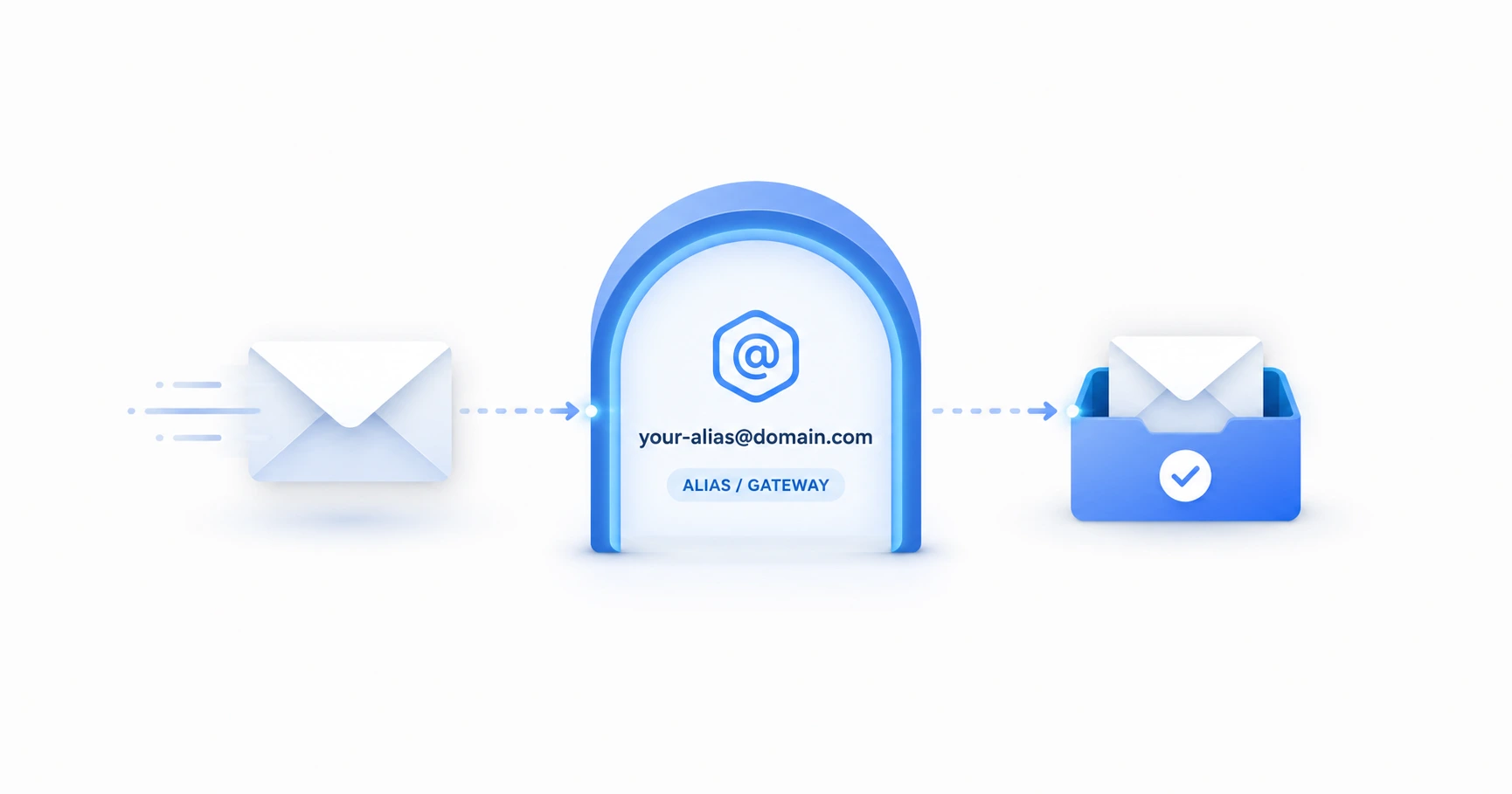
Professional users do not have to abandon their custom business domains to utilize lightweight tracking tools designed for the Gmail Web Application. By configuring Google's built-in "Send mail as" alias feature, you can seamlessly route your custom domain (e.g., [email protected]) through the standard free Gmail interface. This allows you to maintain professional branding while taking full advantage of pixel-based tracking solutions like MailPing.
The Challenge with Desktop Email Clients
Many professional users manage their custom domain emails through desktop applications like Outlook, Apple Mail, or Thunderbird. While these clients are robust, they often lack a straightforward method for injecting external images directly via a URL—a strict requirement for implementing independent tracking pixels. Because MailPing is optimized specifically for the Gmail Web Application's "Insert Photo by Web Address" functionality, users operating solely on desktop clients may find themselves unable to utilize modern, proxy-aware tracking without installing heavy extensions.
Understanding the "Send mail as" Alias
To bridge this gap, Google provides a powerful, built-in feature called "Send mail as." This feature allows any standard @gmail.com account to act as a centralized hub for multiple email addresses. By entering your domain's SMTP credentials into Gmail's settings, Google routes your outgoing messages through your private mail server while allowing you to compose the message entirely within the familiar Gmail web browser interface.
Step-by-Step: Configuring Your Alias in Gmail
Setting up your custom domain alias takes only a few minutes. You will need the SMTP server address, port number, and password provided by your domain or email hosting provider.
- Step 1: Log into your standard Gmail account on the web. Click the gear icon in the top right corner and select See all settings.
- Step 2: Navigate to the Accounts and Import tab.
- Step 3: Under the "Send mail as" section, click Add another email address.
- Step 4: Enter your name and your professional custom domain email address. Ensure "Treat as an alias" is checked, and proceed to the next step.
- Step 5: Enter your domain's SMTP server details and credentials. Select Port 465 (SSL) or Port 587 (TLS) depending on your provider's requirements, and click Add Account.
Once verified, you will notice a new dropdown menu in your Gmail "From" field whenever you compose a new message, allowing you to seamlessly switch between your personal Gmail and your professional domain.
Integrating Pixel Tracking with Your Professional Domain
With your alias successfully configured, tracking your professional communications becomes effortless. Because you are composing the email within the Gmail Web Application, you have full access to the "Insert Photo" tool.
Simply select your custom domain from the "From" dropdown, draft your message, and insert your unique MailPing tracking URL as an image. Once sent, MailPing's engine quietly monitors the network activity. If you're curious about how we differentiate between automated server checks and real human engagement, you can read our deep dive on bypassing the Google Image Proxy.
The tracking pixel is entirely agnostic to the sender's address. Your recipient sees a perfectly branded email from your custom domain, and you receive precise, proxy-aware engagement metrics on your MailPing dashboard.
Explore the Tracking Cluster

Try MailPing for free
Generate an invisible, proxy-aware tracking link to confidently verify when your important emails are opened. No CRM required, zero inbox access.
Related Questions
Can I send emails from my own domain using a free Gmail account?
Yes, you can send emails from your own domain using a free Gmail account by configuring the "Send mail as" alias feature in your Gmail settings. This allows you to maintain professional branding while using Gmail's web interface, making it fully compatible with MailPing's proxy-aware tracking links.
Does pixel tracking work if I use an alias?
Absolutely. Pixel tracking works perfectly with email aliases. The tracking pixel is an independent image file embedded in the email body and is completely unaffected by the sender's email address. Once inserted via the Gmail Web interface, MailPing accurately tracks the engagement regardless of which alias you select from the "From" dropdown.