How to Know if Someone Read Your Email in Gmail
Last updated:
Short Answer: Personal Gmail accounts do not provide built-in read confirmations. Google Workspace may allow limited read receipt requests depending on administrator settings, but confirmations are not guaranteed. To confirm whether an email was opened in a personal Gmail account, you must use an external tracking method that detects when a unique image inside the message is loaded.
Quick Summary:
- Personal Gmail does not provide built-in read confirmations.
- Google Workspace read receipts are limited and not guaranteed.
- Tracking images can confirm when an email is opened.
- Open confirmation depends on image loading behavior.
If you're waiting for a reply and unsure what it means, see what it means when an email is opened but no reply is received or whether your email was ignored.
If you're new to email tracking, start with the complete Gmail email tracking guide, which explains how tracking images, Gmail infrastructure, and confirmation signals work.
Why Gmail Doesn’t Show Read Status
Unlike messaging apps, Gmail does not display “seen” indicators for personal accounts. Google limits read receipt functionality primarily to certain Google Workspace environments (see how to turn on read receipts in Gmail), and even there it is not guaranteed. This means that when you send an email from a regular Gmail account, there is no native way to confirm whether the recipient opened it.
If you are new to Gmail tracking systems, start with the complete Gmail email tracking guide, which explains how tracking pixels, Gmail infrastructure, and confirmation signals work.
Common Questions
Why didn’t someone reply to my email?
There are many possible reasons. The email may not have been opened yet, the recipient may be busy, or they may plan to respond later.
How long should I wait before following up?
In most professional situations, waiting 24–72 hours before sending a follow-up is appropriate.
How can I know if my email was opened?
Personal Gmail accounts do not provide built-in read confirmations, so confirming an open requires an external tracking method.
You cannot see read confirmations in personal Gmail accounts. Gmail does not provide built-in read receipts for standard @gmail.com users. If you want to know whether someone opened your email, you need to use an external tracking method.
If you're comparing tracking images, Workspace read receipts, and extension-based tools, review best Gmail email tracking methods to see which approach is most reliable for confirming email opens.
Why Gmail Doesn’t Show Read Status
Unlike messaging apps, Gmail does not display “seen” indicators for personal accounts. Google limits read receipt functionality primarily to certain Google Workspace environments (see how to turn on read receipts in Gmail), and even there it is not guaranteed.
This means that when you send an email from a regular Gmail account, there is no native way to confirm whether the recipient opened it.
Why People Want to Know if Their Email Was Read
Waiting for a reply can create uncertainty. Many people check whether an email was opened because it helps answer an important question: was the message actually seen?
If an email was never opened, the situation is simple — the recipient may have missed it. But if the email was opened and there is still no response, the interpretation becomes more complicated.
If you are dealing with that scenario, see email opened but no reply for guidance on what it may mean and when to follow up.
Common Ways People Try to Check
- Watching for a reply.
- Checking if links were clicked.
- Using Google Workspace read receipts.
- Installing an email tracking extension.
Most users discover that Gmail itself does not provide direct confirmation.
Other Methods People Consider
- Requesting confirmation in a follow-up email.
- Using Google Workspace read receipts (if available).
- Monitoring link click activity.
- Installing third-party email tracking extensions.
Each method has limitations. Personal Gmail accounts do not provide built-in read confirmation indicators.
How Email Open Tracking Works in Gmail
Gmail automatically loads images when an email is opened (unless disabled by the recipient). Email tracking tools use a unique image link inserted into the message. When the email is opened and images load, the tracking system records that activity.
However, Gmail retrieves images through proxy infrastructure operated by Google. This means image requests may originate from Google servers rather than directly from the recipient’s device. For a deeper technical explanation, see how accurate Gmail email tracking is.
How to Confirm an Email Open in Gmail
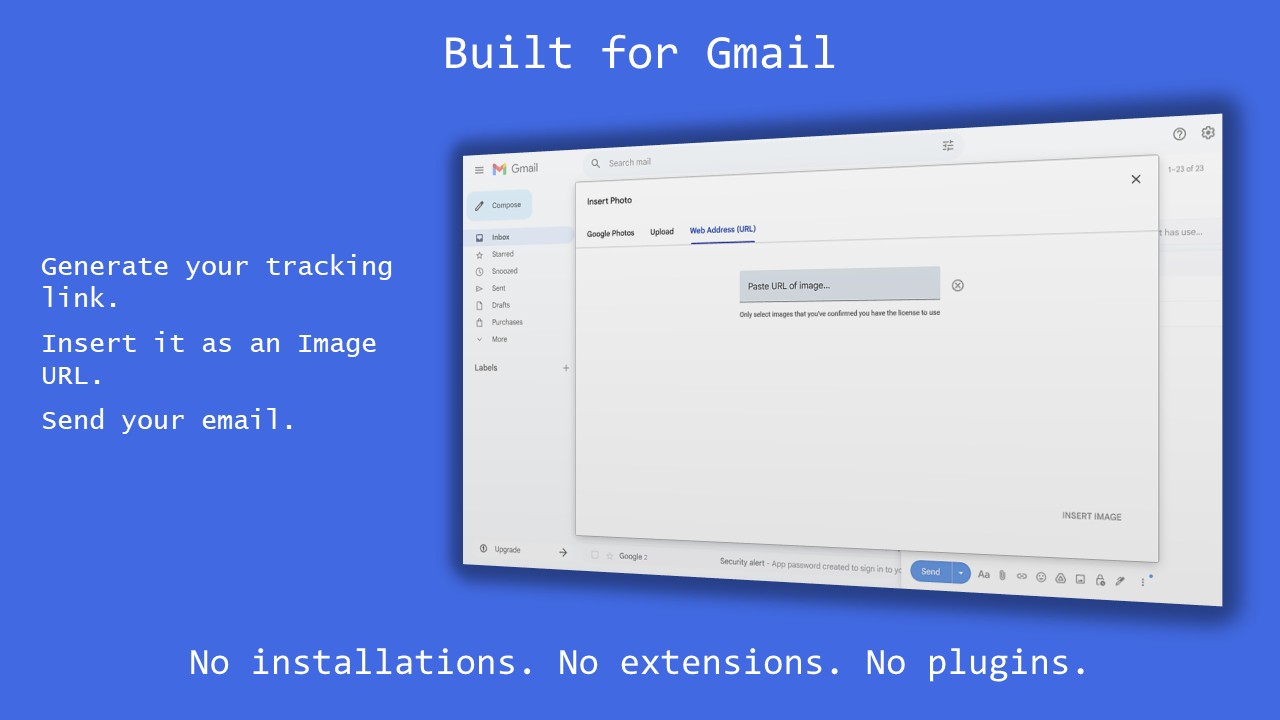
To track an open in a personal account, follow these steps:
- Create a unique tracking image link.
- Compose your Gmail message.
- Select Insert → Image → Web Address (URL).
- Paste the tracking image link.
- Send your email.
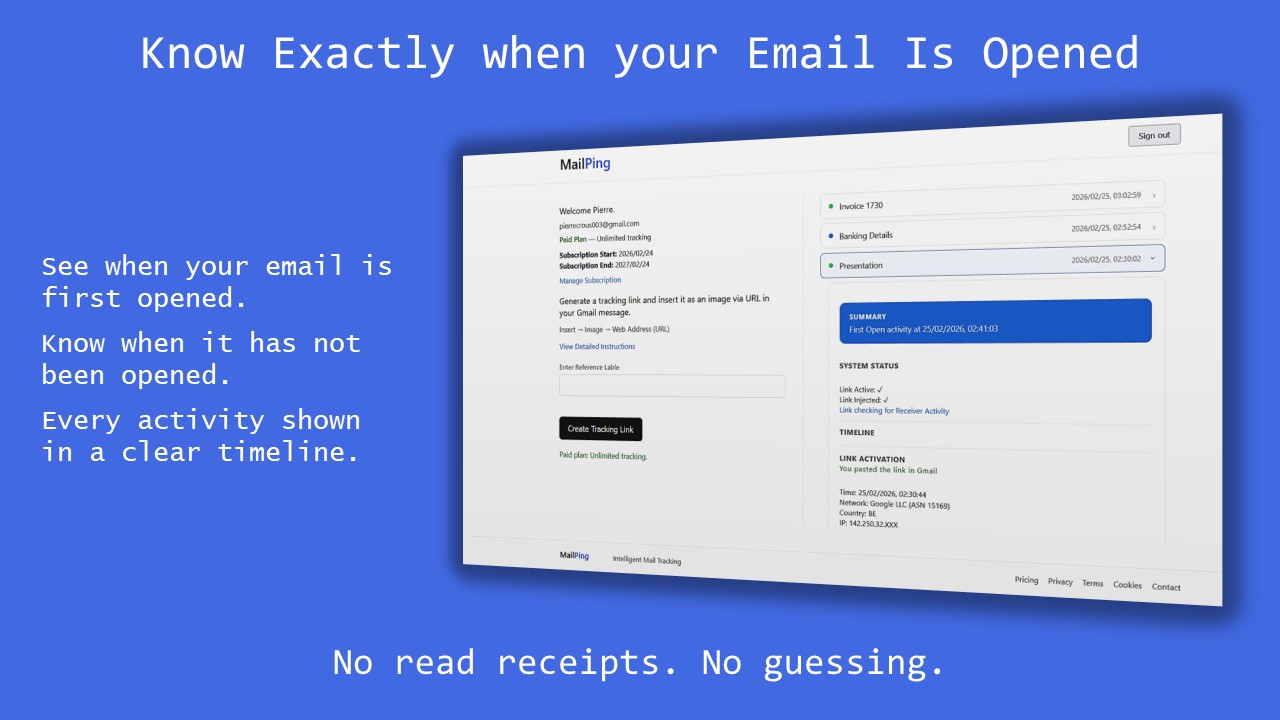
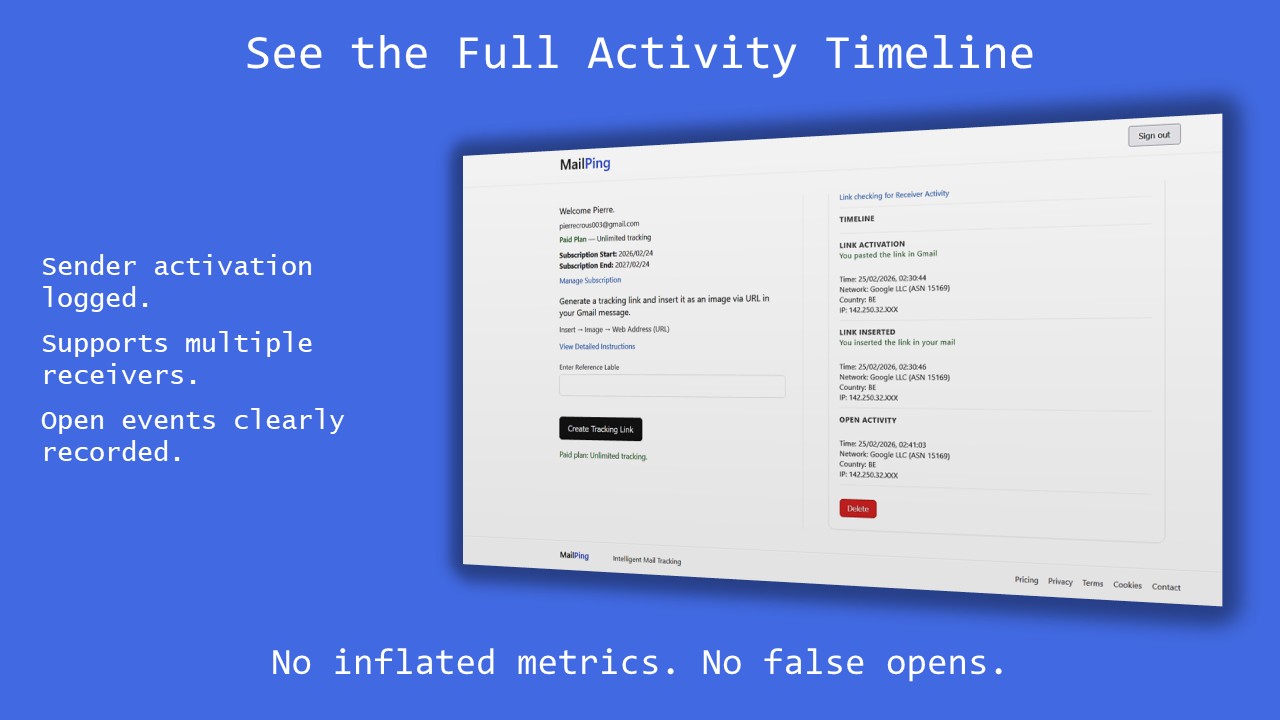
- Check your dashboard for the first confirmed open timestamp.
MailPing focuses on clarity, recording the first confirmed open event without inflating signals from repeated activity.