How to Tell if Someone Read Your Email Without a Read Receipt
Last updated:
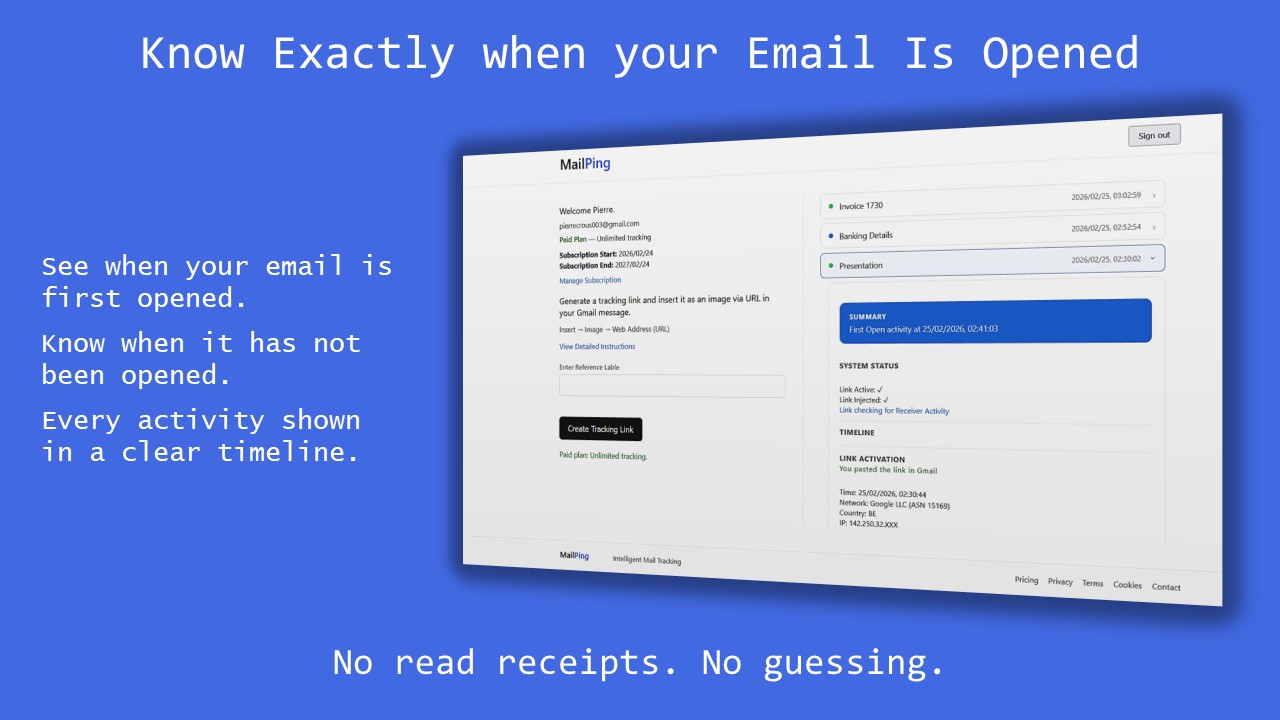
Short Answer: Most email platforms do not provide reliable read confirmations. To tell if someone read your email without a read receipt, you must use a tracking method that detects when your message is opened. Gmail Web is one of the most common environments where image-based tracking can be inserted directly into an email.
How to tell if someone read your email without a read receipt:
- Insert a tracking image inside the email.
- Send the message normally.
- When the email is opened and images load, the tracking system records the open.
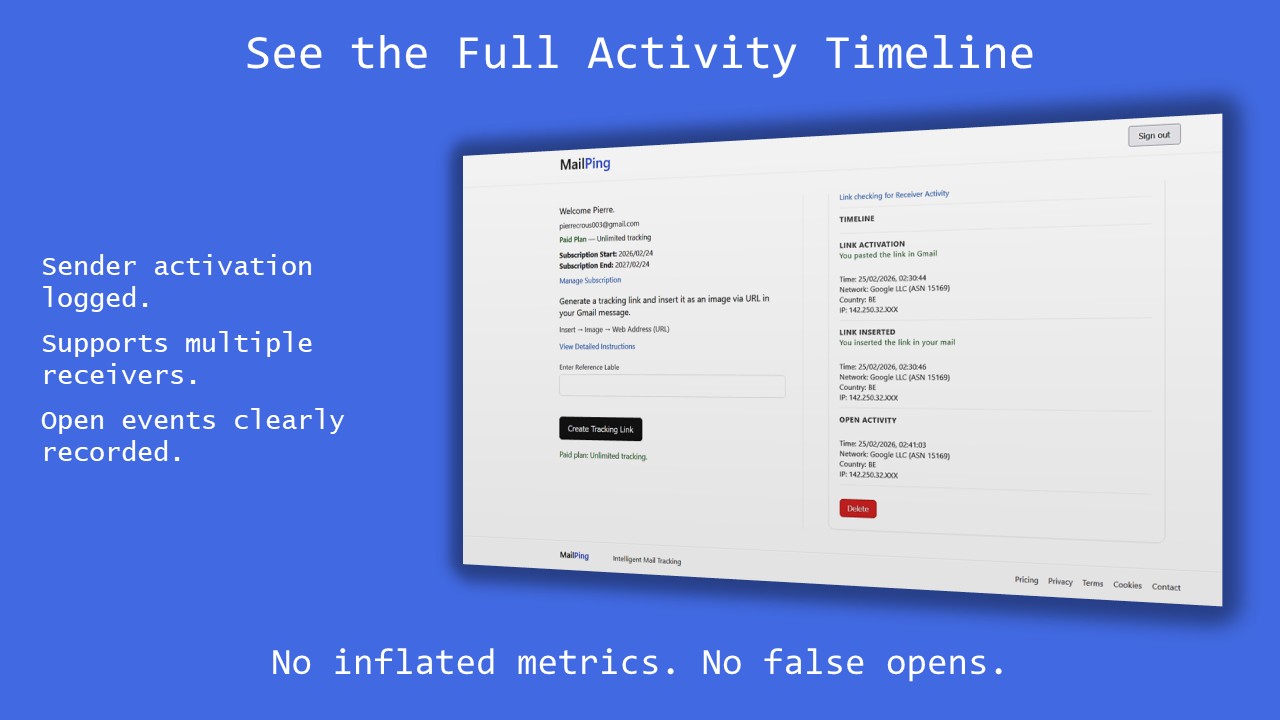
- Check the timestamp of the first confirmed open.
Quick Summary:
- Personal Gmail does not include built-in read receipts.
- Read receipts can be declined.
- Tracking images confirm when emails are opened.
- Open confirmation removes uncertainty.
For a deeper explanation of how email open tracking works across platforms, see the complete Gmail email tracking guide.
If you didn’t receive a read receipt, that doesn’t mean your email wasn’t seen. Many email platforms either don’t support receipts or allow recipients to decline them.
Why Read Receipts Are Limited
Standard Gmail accounts do not include built-in read confirmations (see does Gmail have read receipts). Google Workspace accounts may allow receipt requests, but recipients can decline them. This makes read receipts unreliable for confirming whether your email was actually opened.
How Email Open Tracking Works
Email tracking works by inserting a unique image inside your message. When the email is opened and images load, the tracking system records that event. Gmail Web is one of the most practical environments for this method because it allows direct insertion of image URLs into messages.
Unlike read receipts, this method does not require the recipient to approve anything.
If you're sending emails through Gmail Web, see how to know if someone read your email in Gmail for a detailed explanation of how tracking works in that environment.
How to Set Up Email Open Confirmation in Gmail
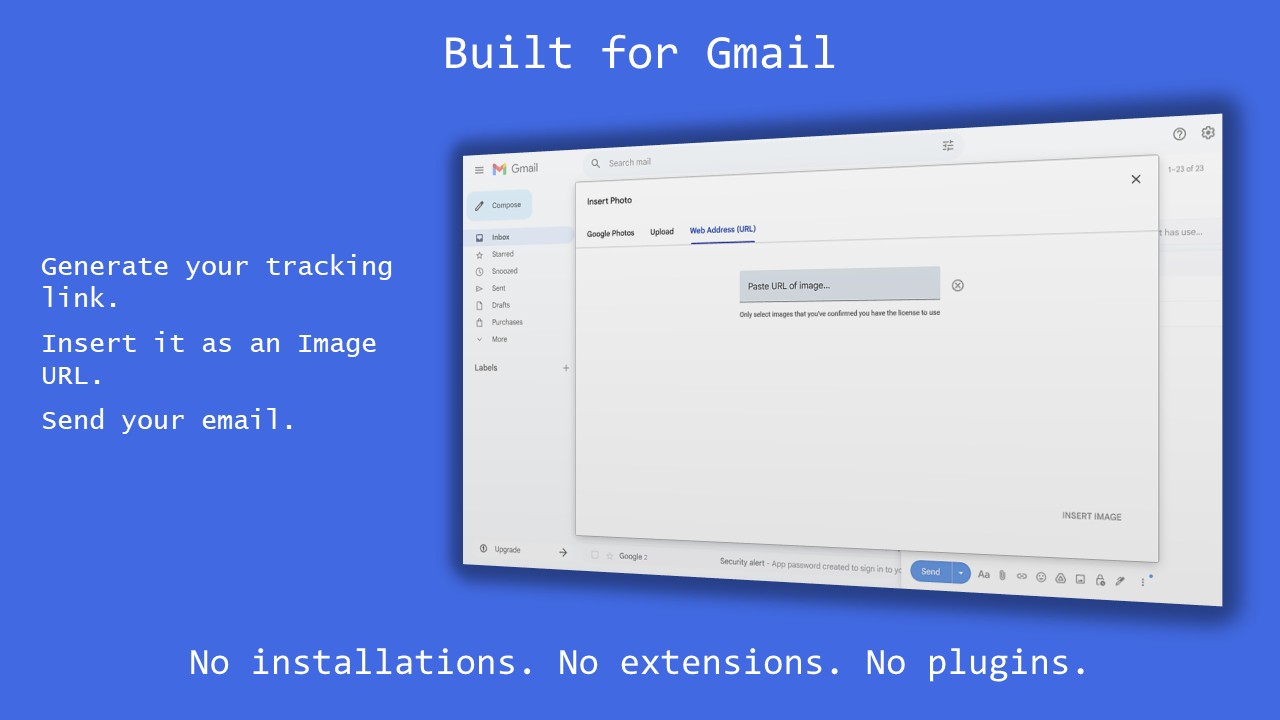
- Create a unique tracking image link.
- Compose your Gmail message.
- Select Insert → Image → Web Address (URL).
- Paste the tracking link.
- Send your email.
- Check your dashboard for the first confirmed open timestamp.
For a complete walkthrough, see how to track emails in Gmail.
Does This Work for Personal Gmail?
Yes. Image-based tracking works with personal Gmail accounts because Gmail loads images when emails are opened (unless disabled).
If you're concerned about accuracy, review how accurate Gmail email tracking is for a breakdown of reliability factors.